


FCM Push Notifications in Angular Learn how to integrate in your Angular application. This comprehensive guide covers setup, configuration, customization, and best practices for seamless notifications.
Firebase Push Notifications, enabled through Firebase Cloud Messaging (FCM), provide a powerful way for developers to communicate with users. They offer a means to send messages and alerts directly to user devices, even when the application isn’t open. In the context of Angular applications, integrating FCM notifications can enhance user engagement and ensure timely information delivery.


Table of Contents
What is Firebase Cloud Messaging (FCM)?
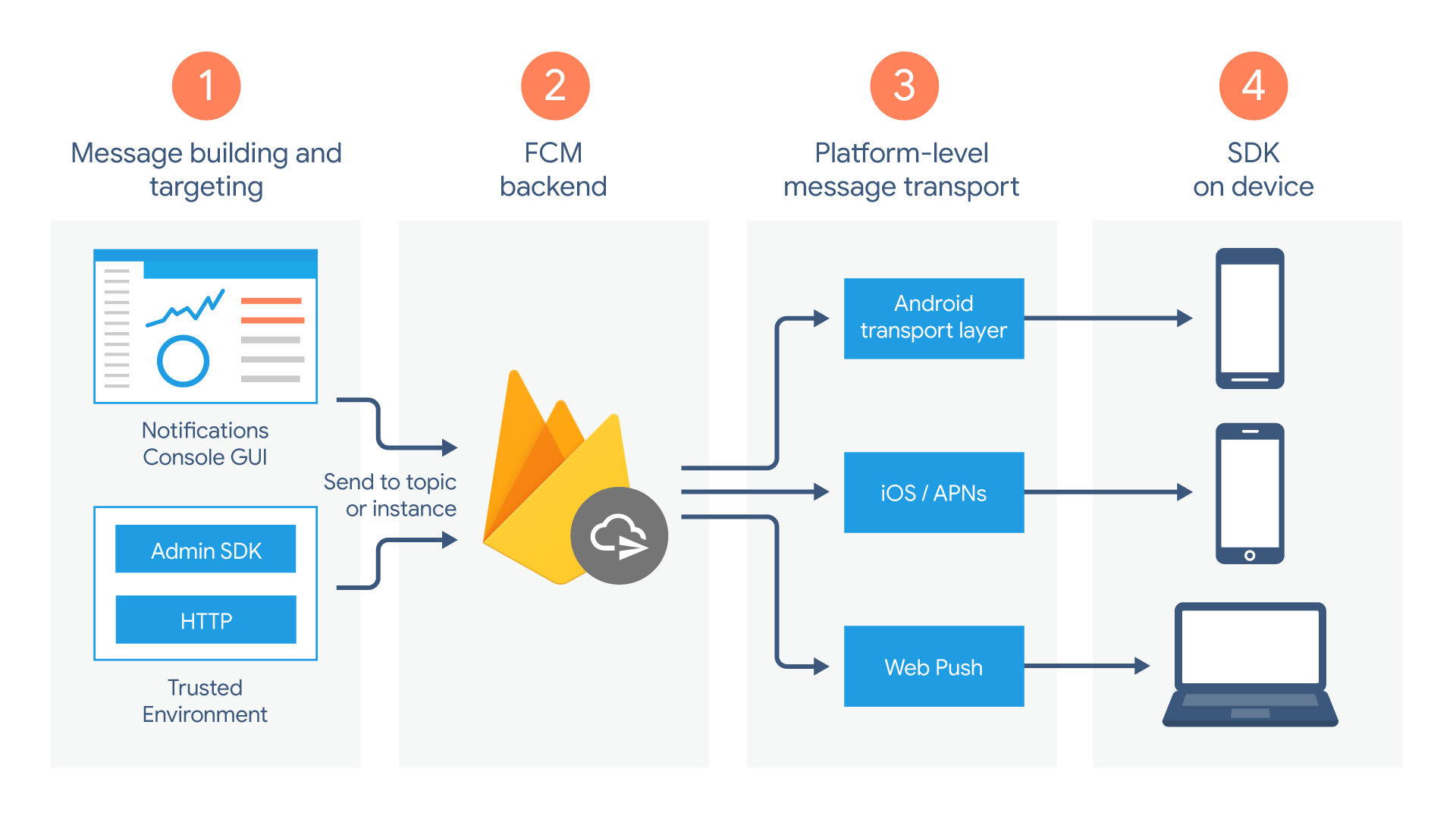
Firebase Cloud Messaging is a cross-platform messaging solution that allows you to send notifications to your users at no cost. It supports message delivery to devices running Android, iOS, and web apps, enabling a unified approach to push notifications. The key features of FCM include:
- Targeted Messaging: Send messages to specific devices, user groups, or topics.
- Reliable Delivery: FCM ensures messages are delivered promptly and reliably.
- Customizable Notifications: Customize notification appearance, actions, and payloads to suit your app’s needs.
FCM works by using a unique token assigned to each app instance. When a message is sent from the server, it is directed to the FCM servers, which then route it to the appropriate devices.
Setting Up Firebase for Angular
To integrate FCM into an Angular app, you need to set up a Firebase project. This involves creating a new project in the Firebase Console and registering your app. Here are the steps:
- Create a Firebase Project: Start by visiting the Firebase Console and creating a new project. Follow the prompts to name your project and set up Firebase services.
- Register Your App: Add your Angular web app to the project. You’ll receive a Firebase configuration object containing keys and identifiers required for connecting your app to Firebase.
- Add Firebase SDK: Download the Firebase SDK and add it to your Angular project. This includes libraries for Firebase services such as Authentication, Firestore, and Messaging.
- Configure Firebase Settings: Copy the Firebase configuration object into your Angular environment configuration file. This step ensures your app can connect to Firebase.
Installing and Configuring Firebase and AngularFire
Next, you’ll need to install the Firebase and AngularFire packages:
npm install firebase @angular/fireOnce installed, configure Firebase in your Angular app. Import AngularFireModule and AngularFireMessagingModule into your app module and initialize Firebase with the configuration settings.
import { AngularFireModule } from '@angular/fire';
import { AngularFireMessagingModule } from '@angular/fire/messaging';
import { environment } from '../environments/environment';

@NgModule({
  declarations: [AppComponent],
  imports: [
    BrowserModule,
    AngularFireModule.initializeApp(environment.firebase),
    AngularFireMessagingModule
  ],
  providers: [],
  bootstrap: [AppComponent]
})
export class AppModule {}
Implementing FCM Notifications in Angular
Implementing FCM notifications involves several steps, including requesting user permissions, generating FCM tokens, and handling incoming messages.
Requesting User Permissions
Before you can send notifications to a user, you must obtain their permission. In Angular, this can be done using the AngularFireMessaging service. Here’s an example:
import { AngularFireMessaging } from '@angular/fire/messaging';

constructor(private afMessaging: AngularFireMessaging) {}

requestPermission() {
  this.afMessaging.requestToken.subscribe(
    (token) => { console.log(token); },
    (error) => { console.error(error); }
  );
}
Generating and Managing FCM Tokens
FCM tokens are unique identifiers assigned to each app instance. They are used to target specific devices when sending notifications. You can manage these tokens using AngularFireMessaging:
this.afMessaging.tokenChanges.subscribe(
  (token) => {
    // Save the token for later use
  },
  (error) => { console.error(error); }
);
Handling Incoming Messages in Angular
To handle incoming messages, subscribe to the messages observable provided by AngularFireMessaging. This allows you to define how your app responds to different types of messages.
this.afMessaging.messages.subscribe((message) => {
  console.log(message);
});
Creating a Notification Service in Angular
A notification service is a convenient way to manage FCM notifications across your Angular app. It encapsulates the logic for requesting permissions, generating tokens, and handling messages. Here’s a basic implementation:
import { Injectable } from '@angular/core';
import { AngularFireMessaging } from '@angular/fire/messaging';

@Injectable({
  providedIn: 'root',
})
export class NotificationService {
  constructor(private afMessaging: AngularFireMessaging) {}

  requestPermission() {
    return this.afMessaging.requestToken;
  }

  receiveMessage() {
    return this.afMessaging.messages;
  }
}
This service can then be injected into components to manage notifications more effectively.
Customizing Push Notifications
Push notifications can be customized in several ways, including the content, appearance, and actions. The notification payload typically includes a title, body, icon, and data. Here’s an example payload:
{
  "notification": {
    "title": "New Message",
    "body": "You have a new message!",
    "icon": "/path/to/icon.png"
  },
  "data": {
    "click_action": "FLUTTER_NOTIFICATION_CLICK"
  }
}
To customize notifications, you can define specific actions, such as opening a particular page in your app when a notification is clicked.
Token Management and Subscription Handling
Managing FCM tokens and subscriptions is crucial for maintaining an effective notification system. Tokens may expire, requiring regular updates and re-subscriptions. Additionally, users may want to opt out of notifications, necessitating an easy way to unsubscribe.
Testing and Debugging FCM Notifications
Before deploying your Angular app, thoroughly test FCM notifications. Use the Firebase Console to send test messages and ensure they are delivered correctly. Additionally, check the browser console for errors and handle any issues that arise.
Deploying Angular App with FCM
Deploying an Angular app with FCM requires careful preparation. Ensure that all Firebase services are correctly configured and that the app is optimized for production. Use Firebase Hosting for seamless deployment and monitor the performance of notifications using Firebase Analytics.
Common Challenges and Solutions
Common challenges with FCM notifications include handling notification permissions, managing multiple environments, and debugging delivery issues. Address these challenges by implementing best practices and leveraging Firebase


